FAQ and Troubleshooting
Symptom-first. If your issue isn't here, email Engineering IT (eit-help@umd.edu) with a screenshot and the approximate time it happened.
Login and sessions
"User does not exist" / "Access denied" after signing in
You aren't in your lab's Active Directory group yet. There's no manual Linux account to provision — your account is created on first login automatically, once AD says you belong to the lab. Ask your PI or lab admin to add your UMD directory ID to the lab's AD group. Group membership syncs to Slurm every ~5 minutes after that, and the next time you launch a session it just works.
If your PI says you've already been added and you're still locked out, email eit-help@umd.edu with your directory ID and lab name.
Portal redirects me to UMD login, then back, then to UMD login again
Stale session cookie. Log out of everything, clear cookies for
hpc.eng.umd.edu and shib.idm.umd.edu, and try in a private /
incognito window.
My desktop session is stuck in "Queued"
Every node in your lab's partition is busy. Options:
- Wait (you'll be next in the queue).
- End sessions you no longer need (yours or, politely, a labmate's
zombie session you can see in
squeue -p <your-lab>). - Request fewer resources (1 GPU instead of 2, etc.).
- Submit the work as a batch job instead, which queues without needing a whole desktop (see slurm-cli.md).
If it's been queued more than an hour and sinfo shows idle nodes,
something's wrong — ping IT.
Session launches but disconnects immediately
A genuine launch failure (not the same as "lab share is empty," which doesn't disconnect you — see below). Look at the session output log in the OOD portal under Jobs → Active Jobs → Expand (or the "My Interactive Sessions" card has a link). If it doesn't make sense, send the contents to eit-help@umd.edu.
Can I leave a session running overnight?
Yes, if you requested enough walltime. It survives browser closes, network drops, and even OOD server maintenance. It does not survive the underlying node rebooting — see the maintenance window below.
When does maintenance happen?
Routine maintenance is the third Saturday of every month, 08:00 – 12:00 ET. This is when we apply OS patches, kernel updates, driver rolls, etc. Nodes will reboot during this window.
What you'll see:
- A non-dismissible info banner in OOD starting the day after the previous month's window (more than 3 days out).
- A warning banner in the final 3 days before the window (including the day of).
- Sessions running at 08:00 ET on the third Saturday will be terminated.
What to do:
- Save work to your lab share before the window — anything on a
node-local
~may not survive a reboot. - If you have a long-running job, time it so it finishes before Saturday morning, or accept that it'll be killed.
- Off-cycle maintenance gets its own banner with a specific date and a heads-up email; the third-Saturday schedule is the default cadence in absence of those.
GPU issues
Why does my session start with a GPU when I didn't ask for one?
That's the default. Most profiles prefill the GPU field to
Shared GPU — your session time-shares a physical card with
labmates, so claiming it doesn't lock anyone out, and most desktop
work (CUDA, accelerated viewport rendering, neuroimaging containers
run with apptainer --nv) is happier with a GPU available. If you
know you won't use it, set GPU to None (CPU only) in the
launch form. (Exclusive GPUs are different — those do lock labmates
out; see Releasing GPUs Promptly.)
nvidia-smi shows no GPU in my session
Either you didn't request one (check your launch form) or the node is in a strange state. Confirm:
If CUDA_VISIBLE_DEVICES is empty, the session wasn't allocated a
GPU. End and relaunch with GPU set to Shared or
Exclusive in the form.
3D apps are slow / shaders look wrong
First question: how did you launch the app? The desktop itself
renders in software; GPU-accelerated OpenGL comes from a per-app
wrapper (glrun) that the Applications → Research Software menu
entries and desktop icons already use. An app you started by hand in
a terminal (module load matlab && matlab) skips the wrapper and
falls back to software rendering — that's the usual cause.
Fix: launch from the Research Software menu or desktop icon, or add the wrapper yourself:
To check whether hardware rendering is working in your session:
It should show your NVIDIA card (e.g. "NVIDIA RTX 6000 Ada"). If it
says llvmpipe even though your session has a GPU, VirtualGL isn't
working on that node — email eit-help@umd.edu.
Don't run vglrun directly — in a session without hardware GL it
crashes apps outright. glrun detects that case and falls back
safely, so it's the right tool in every session.
torch.cuda.is_available() returns False
You didn't request a GPU, or Slurm allocated you a "shard" (MPS fractional GPU) that your CUDA runtime doesn't see. Confirm:
If the device is there but PyTorch disagrees, the CUDA version in
your env is probably incompatible with the driver on the node. The
quickest fix is to use the curated jupyter-gpu module instead of a
hand-rolled env — see python-and-conda.md.
Storage and files
Your lab share is empty / permission denied
Two likely causes:
- You left the AD password field blank on the launch form. That's a supported option (sessions that don't need lab storage), but the lab share won't be mounted as a result. Relaunch and enter your AD password.
- You entered the wrong AD password. Relaunch and try again, carefully — it's case-sensitive, no leading/trailing spaces.
If neither fixes it:
You should see cifs.spnego entries. If not, cifscreds add didn't
succeed. Try manually:
If that works, report to IT — the session script may have failed.
"Permission denied" when writing to a folder I should have access to
AD ACLs on the Synology don't match what you expect. Ask your lab admin to check in the Synology UI.
I lost a file from ~
Your home directory lives on the local disk of one specific node — whichever node the profile/constraint of your previous session pinned you to. If your current session is on a different node (you picked a different profile, or a CLI job landed elsewhere), you simply can't see that other home from here. Re-launch with the same profile to land back on the same node, or recover the file via SSH to that specific node. Lesson: keep real work on your lab share. See your-lab-storage.md.
Disk full on /scratch
/scratch is local SSD shared by everyone on the node and isn't
auto-cleaned. Someone (often you, from a previous job) has left
files behind. Delete what's yours — the sticky bit means you can
only delete your own files. If you used a per-user subfolder, it's
a quick rm -rf /scratch/$USER/*. If /scratch is full of files
not owned by anyone in your lab or the situation persists, email
eit-help@umd.edu.
How do I transfer a big dataset?
From your laptop to lab storage:
# Over SSH (see direct-ssh.md). You'll need to `cifscreds add` first
# to write into /mnt/<lab-share>/ paths.
rsync -avh --progress /local/data/ \
    <directoryID>@hpc.eng.umd.edu:/mnt/<lab-share>/data/
Or use the Files app in OOD for small transfers (drag and drop).
Software
module: command not found
Happens very rarely — usually the /opt/sw NFS mount isn't loaded.
In a fresh terminal:
If it's not mounted, report to IT. If it is, try sourcing the Lmod init:
module avail shows nothing
Same cause as above. Confirm /opt/sw/modules/Core exists.
MATLAB / ANSYS / COMSOL says "license not available"
- Transient (network blip): try again.
- All seats taken: try a different time, or check the lab's license dashboard if they have one.
- Persistent: check with your lab admin whether the site license covers your workstation / time of day.
Python can't find a package I pip-installed
Did you conda activate in the same terminal? Packages are scoped
to the active env. Also make sure you didn't accidentally pip
install while no env was active — that puts packages in your
node-local home directory, which won't follow you if your next
session lands on a different node in the lab.
Performance
My session is slow even though I'm the only user on the node
Possible causes:
- Network I/O — streaming a big dataset from lab NAS every
iteration. Stage data to
/scratchonce per job. - GPU contention — another job is on the same GPU via MPS; check
nvidia-smi. - VNC compression — try a lower resolution or use the native TurboVNC client.
VNC is laggy over my home internet
- Use a lower desktop resolution.
- Install the native TurboVNC client and launch via the "Launch TurboVNC client" button; it's noticeably better than in-browser NoVNC over weak links.
- Or open the Native Instructions tab on the running session card, start the SSH tunnel it shows, and connect with any local VNC client (TigerVNC, TurboVNC, RealVNC). See launching-a-desktop.md.
- For editor-driven work, use the VS Code (code-server) OOD app — full VS Code in your browser, running on your lab node through Slurm. Much lighter than a VNC desktop, and doesn't require any client install.
Can I connect with a native VNC client instead of the browser?
Yes. On any running VNC session card the Native Instructions tab
gives you a .vnc file plus the SSH tunnel command to run locally —
walkthrough in
launching-a-desktop.md.
Where do I find FSL? FSLeyes won't open from fsl &
module load fsl puts everything in your PATH. The GUI is launched
with fsleyes, not fsl (there's no top-level fsl GUI binary —
the desktop launcher icon also runs fsleyes). CLI tools like
flirt, bet, fslmaths are still just their bare names.
Misc
Copy and paste isn't working between my laptop and the VNC desktop
The in-browser NoVNC desktop keeps its own clipboard, separate from your laptop's — so a plain Ctrl/Cmd-C on your laptop and a paste inside the desktop won't cross the boundary on their own. Use the NoVNC clipboard panel as a relay:
- Open the NoVNC control bar — the small tab/handle in the middle of the left edge of the desktop. Click the arrow to expand it.
- Click the clipboard icon.
- Into the desktop: paste your text into the clipboard box (Ctrl/Cmd-V), then paste it a second time into the app running inside the desktop.
- Out of the desktop: copy in the desktop app — the text appears in that clipboard box — then copy it from the box to your laptop.
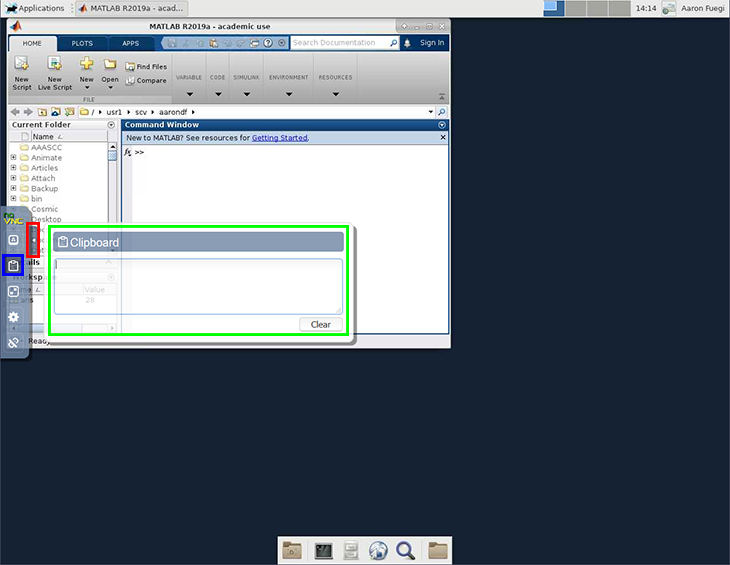
Screenshot courtesy of Boston University Research Computing Services.
Notes:
- Chrome handles this most smoothly (it'll offer to enable native copy/paste); other browsers need the manual clipboard-panel relay above.
- A native VNC client (TigerVNC / TurboVNC) syncs the clipboard more seamlessly than the browser — worth setting up if you copy and paste a lot. See launching-a-desktop.md.
Can I run my own Docker container?
Not Docker (requires root), but Apptainer (formerly Singularity)
is installed. You can pull and run any docker:// image:
The --nv flag passes GPU access through.
Can I run sudo?
No. You don't have sudo on the compute nodes (unless you're on the admin team).
Can I schedule a recurring job?
Yes — sbatch it from a cron on your own machine, or look into
Slurm's --begin=now+8hours flag for deferred execution. Systemic
"every night at 3am" jobs would need IT involvement.
How long will my files be kept?
Files on /mnt/lab-* persist until your lab deletes them. The
retention policy is your PI's call, not IT's.
Can my labmate log in as me?
No — and they shouldn't. Each person has their own account. Credential sharing violates UMD policy. To share data, put it on a lab share folder both of you have AD access to.
I was added to a new lab — do I have to do anything?
Yes — relaunch your desktop session. The new lab's profiles will
appear in the Desktop / Lab profile drop-down on the OOD forms
(e.g.
Who do I ask?
- Science questions — your lab mates, your PI.
- "Which software should I use for X" (in general) — your lab.
- "This tool won't start", "mount broken", "I can't log in" — Engineering IT.
- "I need access to a lab" — your PI / lab admin adds you to the lab's AD group; Slurm picks it up automatically within ~5 minutes.
- "I need a partition change", "I need new software" — email eit-help@umd.edu (PI usually CCed).